
Help & Support
General
Banking
Payment & Transfer
Investment
Credit Card Services
-
What is Digital Banking Services?
Digital Banking Services allow you to conveniently manage your finances anytime, anywhere through secure electronic channels such as Internet browsers and mobile applications.
Digital Banking Services enable you to perform a wide range of activities, including but not limited to making banking transactions (such as fund transfers and bill payments), trading securities and managing your investments, as well as accessing account information and other banking services. -
What kind of banking services are available through Digital Banking Services?
You can manage your accounts through the following Digital Banking:
- Transaction Status Enquiry
- Account Enquiry
- Fund Transfer
- Credit Card Payment
- Foreign Currency & Gold Buy / Sell Order
- ePayment (Bill Payment)#
- Time Deposit (Enquiry, Setup, Renewal and Withdrawal, Change of Maturity Instruction)
- Rate Enquiry (Deposit Rates, Exchange Rates and Gold Prices)
- Remittance (Telegraphic Transfer, CHATS and HK-Macau Instant Remittance)
- Cheque Services (Stop Cheque Payment and Cheque Status Enquiry)
- Other Services (Change of User ID and PIN)
- Cheque Book Requisition
- Securities Trading^
- eIPO and Financing^+
- IPO Bond Subscription^
- Account Opening - Investment Account, Currency-linked Deposit Account, Statement Savings Account and Time Deposit Account#
- Unit Trust Subscription, Switching and Redemption
- Unit Trust Monthly Investment Plan
- Currency-linked Deposit^@
- FPS Small Value Transfer
- FPS Account Binding
- eDDA Service
*Not applicable to mobile devices, please access by personal computers.
#Only applicable to Individual Customers with Self-Certification record
^Only applicable to customers who have registered the investment account and/or currency linked deposit account to eBanking services. Customers without similar investment experience are rejected from placing such order via Internet Banking.
+Only applicable to personal customers who have subscribed IPO financing service, except joint account holders.
@ To better protect customers' interest, individual who meets any of the below criterias are advised to place
the subscription instruction via the investment corner of our designated branches:-
Aged 65 or above
-
Illiterate
-
Visually impaired
-
Limited means
-
How can I apply for Digital Banking Services?
You can register the Digital Banking Services with the ATM Card or Credit Card.
Besides that, you can visit any of our branches to apply. Also, you may contact our Customer Service Hotline at 3199 9188 for details.
-
What are the Service Hours, Cut-off Time and Value Date of Digital Banking Services?
Service Type Service Hours Cut-off Time / Value Date General Banking Services - Account Enquiry
- Fund Transfer within OCBC Bank Accounts
- Credit Card Payment
- Nominated Account Transfer-"NACT" within OCBC Bank
- Register Transfer Account
- Rate Enquiry
- Online Requisition
- eDeposit
24 hours 20:00 / same day value Nominated Account Transfer-"NACT" to other banks^ 24 hours Mon - Sat: 20:00 / same day value Nominated Account Transfer-"NACT" from other banks^ 24 hours Mon - Sat: 20:00 / same day value Other Bank Account Transfer 24 hours Mon - Sat: 20:00 / same day value FPS Small Value Transfer 24 hours Mon - Sat: 20:00 / same day value ePayment^ 24 hours Mon - Sat: 17:00 / same day value
Payment or donation via Electronic Bill Presentment & Payment Service
Mon - Fri: 12:30 / same day valueTime Deposit - Confirmation Enquiry
- Placement, Renewal, Withdrawal, Change of Maturity Instruction
- 24 hours
- Mon - Fri: 9:00 - 20:00
20:00 / same day value Stop Cheque Payment Mon - Sat: 8:00 - 20:00 20:00 / same day value Foreign Exchange Mon - Fri: 9:00 - 2:30 / [3:30]*
Sat: 9:00 - 13:00#20:00 / same day value Gold Trading Mon - Fri: 9:00 - 17:00 20:00 / same day value Renminbi Services Mon - Fri: 9:00 - 2:30 / [3:30]*
Sat: 9:00 - 13:00#20:00 / same day value Overnight Plus Deposit Account Services Mon - Fri: 9:00 - 16:00 16:00 / same day value Telegraphic Transfer^ 24 hours MOP: Mon – Fri 15:00
Other Currencies: Mon - Fri 16:00
/ same day valueCHATS^ 24 hours Mon - Fri: 16:00 / same day value HK-Macau Instant Remittance 24 hours Mon - Sat: 20:00 / same day value Unit Trust Subscription, Switching and Redemption 24 hours 14:30 / Instruction submitted before the cut-off time will be executed on the same dealing day; Instruction submitted after the cut-off time will be executed on the next dealing day. For more details about the dealing day, please refer to relevant prospectus. Unit Trust Monthly Investment Plan 24 hours 14:30 / Instruction submitted before the cut-off time will be executed on the same dealing day; Instruction submitted after the cut-off time will be executed on the next dealing day. For more details about the dealing day, please refer to relevant prospectus. Currency-linked Deposit Order Placement
Mon - Fri: 9:00 - 17:30
(except non-business day of Hong Kong or by OCBC Bank decision from time to time)
Enquire Outstanding Deal
24 hoursOrder Placement
Mon - Fri: 17:30 / same day value
Enquire Outstanding Deal
ImmediatelyOther Service — Change of User ID & PIN 24 hours Immediately Other Service — Email address update 24 hours Effective after 12 hours Securities Trading Trading Day: 9:30 - 16:10
Preset Instruction: 18:00 - 9:15 (next trading day)Immediately (during Trading Hours)
9:15 (Pre-Market Session)
16:10Account Opening - Investment Account Mon to Sat: 9:00 - 19:00
(except Hong Kong public holiday)Immediately Account Opening - Currency-linked Deposit Account, Statement Savings Account and Time Deposit Account Mon to Sat: 9:00 - 20:00
(except Hong Kong public holiday)Immediately Update Investment Customer Information Form 24 hours Immediately Settlement Account Registration Mon to Sat: 9:00 - 19:00
(except Hong Kong public holiday)Immediately OneToken 24 hours Effective after 12 hours Personal Digutal Banking Services are not available for approximately half an hour from 8:00pm on each business day for data update.
* New York Winter Time
# Service is not available if Saturday is also a Hong Kong public holiday.
^ Instruction submitted after cut-off time will be executed on the next business day excluding Saturday.
-
What are the minimum browser requirements for using Internet Banking?
The best view of browser requirements for using Internet Banking are as follows:
- Microsoft Edge: 99 or above
- Chrome: 101 or above
- Safari: 15 or above
-
Why do I need to authenticate my Internet Banking login with OneToken if I have registered it on my mobile device?
This security measure helps protect your account by ensuring that only you can access your Internet Banking. OneToken adds an extra layer of authentication to safeguard your personal and financial information.
For more details about OneToken, please refer to the relevant FAQ section. -
How do I use OneToken to log in to Internet Banking?
If Push Notifications are enabled:
- You will receive a notification on your mobile device registered with OneToken.
- Tap the notification to open the “OCBC Hong Kong” mobile app.
- Verify the login details and tap “Approve” to proceed.
If Push Notifications are not enabled:
- Open the “OCBC Hong Kong” mobile app on your mobile device registered with OneToken.
- Tap the “OneToken” icon.
- Verify the login details and tap “Approve” to complete your login.
For more details about Push Notification, please refer to the relevant FAQ section. -
What is Mobile Banking Services?
Mobile Banking Services is part of our eBanking Services which allows you to perform banking transactions, securities trading and access information through the mobile network platform.
-
Do I have to register for Mobile Banking Service?
No registration is required for Personal Digital Banking Services Customer.
-
What kind of banking services are available through Mobile Banking Services?
You can manage your accounts through the following Mobile Banking Services:
- Transaction Status Enquiry
- My Portfolio
- Transfer & Pay(FPS Small Value Transfer, Fund Transfer, Nominated Account Transfer, ePayment (Bill payment), Credit Card Payment)
- Scan & Pay
- QR Code Collect
- Foreign Currency & Gold Buy / Sell Order
- Time Deposit (Enquiry, Setup, Renewal and Withdrawal, Change of Maturity Instruction)
- Rate Enquiry (Deposit Rates, Exchange Rates and Gold Prices)
- Cheque Services (Stop Cheque Payment and Cheque Status Enquiry)
- Other Services (Email address update, change of User ID and PIN)
- Securities Trading^
- eIPO and Financing^+
- Risk Profiling Questionnaire
- Unit Trust Subscription, Switching and redemption
- eStatement
- OneToken
- All-in-one Investment Account Opening#
- eBanking account registration in Mobile directly
- Biometric Logon
More features to be provided, click here to view.
#Only applicable to Individual Customers with Self-Certification record
^Only applicable to customers who have registered the investment account and/or currency linked deposit account to eBanking services. Customers without similar investment experience are rejected from placing such order via Internet Banking.
+Only applicable to personal customers who have subscribed IPO financing service, except joint account holders.
-
How can I suspend Mobile Banking Services?
You can visit our Internet Banking or any of our branches to apply. Also, you may contact our Customer Service Hotline at 3199 9188 for details.
-
What are the Service Hours of Mobile Banking Services?
The service hours of Mobile Banking Services are identical to Internet Banking Services. (Please refer to the Service Hour Table)
-
How can I logon to Mobile Banking?
You can use your Internet Banking User ID and password to login our Mobile Banking.
-
What can I do if I forget my User ID and/or PIN?
Customers can reset their mobile and internet banking User ID and PIN by clicking "Trouble logging in" on mobile banking login screen or clicking “Forgot Your User ID/PIN” on internet banking login screen.
If customers can login mobile banking app by biometric authentication, customers can reset their User ID and PIN by "More" > "Profile & app settings" > "Manage login".
-
How do I update my personal information (contact number, email address, address, employment information)?
You can use the mobile banking service to click "More" → "Update personal details" to update the required personal information. (*This service is only available to single-name account holders)
-
Will the new personal information take effect immediately?
The new personal information will take effect within 1 business day, and you will receive an SMS and email notification after the update. If you have any of our credit cards or accounts with our subsidiaries, it will take 5 business days for those account information to be updated. During this period, please do not submit information update form through other channels to avoid duplication.
-
Do I need to use any particular telecommunication service providers?
Our Mobile Banking is available to all telecommunication service providers. However, you are advised to study the local and roaming data charges imposed by the service providers.
-
How can I check the balances and transaction history of my registered accounts?
You can enquire your registered accounts balance and transaction history by clicking the "Account Enquiry" button.
-
How far back can I enquire the transaction history of my registered accounts in Mobile Banking?
You can enquire last 90 days' transactions history for Deposit and Credit Card accounts and last 60 days' transaction history for Securities and Unit Trust transactions.
-
Can I enquire the transaction which is performed today?
Yes, you can enquire today's transactions through "My Portfolio".
-
How can I know the fund transfer instruction is accepted by the Bank?
A confirmation message is displayed on the screen, when your instruction is accepted by the Bank.
-
What is the Maximum Daily Transaction Limit of Personal eBanking Services?
The Maximum Daily Transaction Limit of Mobile Banking Services are shared with Internet Banking Services. (Please refer to Maxiumum Daily Transaction Limit Table)
-
Can I reduce the daily limit myself?
You can reduce your daily limit via Internet Banking by selecting "Daily Limit Maintenance" under "Customer Service" section or via Mobile Banking by selecting "Manage Transaction Limit" under "Payment & transfers". However, if you would like to increase or reset your limit, you need to use the Security Device for Internet Banking or OneToken for Mobile Banking, or please download and complete the Personal eBanking Services - Alteration Request Form and submit to any of our branches.
-
The connection is lost while making fund transfer, how do I know the transaction is done?
All successful transactions will be given a transaction reference number for your record. If a transaction reference number is not given, please re-login to Mobile Banking Service and check the transaction history and account through the "My Portfolio". Should you have any doubts or questions, please call our Customer Service Hotline at 3199 9188.
-
Can I input any special characters in Customer Reference?
Only alphanumeric characters are allowed.
-
What is Nominated Account Transfer "NACT"?
Customers need to pre-register the third party accounts at branch. Afterward, you can transfer to the registered third-party account (including OCBC Bank accounts and other local bank accounts) through Transfer & Pay via Mobile Banking (applicable to personal customers only) to make a Fund transfer out or collect fund.
-
How to collect fund from "NACT"?
Customers can select the template to collect fund from pre-register third party accounts in “QR Code Collect" service via Mobile Banking (applicable to personal customers only). The payment receiving time is subject to the receipt mode and settlement time of the payee bank.
-
How to transfer fund to "NACT"?
Customer can select the relevant template ( there is no asterisk below the beneficiary icon) for pre-register third party accounts to transfer funds via Transfer & Pay on Mobile Banking (applicable to personal customers only).
-
When will the fund to be credited to the beneficiary's account for NACT?
For transferring fund to other bank's account, if the NACT instruction is submitted before the cutoff time (Please refer to the Service Hour Table) every business day (excluding Saturday), fund will be credited to the payee's account at the same business day (subject to the payee's bank arrangement). If the payee's account is maintained at OCBC Bank, the payment will be effected immediately.
Collection of fund from other bank's account will generally take 3 business days excluding Saturday, subject to the collection of fund by OCBC Bank.
-
Can I make card payment through Personal eBanking Services?
Yes, you can make card payment to your registered OCBC Bank Credit Card Account.
-
What type of investment products can I trade through "Securities" services?
All securities and warrants listed on the Hong Kong Exchange and Clearing Limited can be traded in "Securities" services.
-
What should I pay attention to before I place a securities trading order?
Prior to placing a buy order, there must be sufficient funds in your settlement account to cover the trading amount including commission and other charges. The amount will be withheld upon broker's acknowledgment of your buy order. An extra amount of CNY 2.00 will be held for each CNY denominated stock buy order for the purpose of settling the shortfall of various trading related fees (including stamp duty, transaction levy, Financial Reporting Council transaction levy, investor compensation levy (currently exempted), trading fee, trading tariff, etc.) payable by you in Hong Kong dollars after converting such by using the relevant exchange rate determined by the Hong Kong Monetary Authority, subject to the Bank's absolute discretion. Likewise prior to placing a sell order, there must be sufficient available quantity for sale in your securities account. The securities sold will be withheld upon acknowledgment of your sell order.
-
How can I check the available balances of my settlement account?
You can check the available balance of your settlement account through clicking "Trade Bal" button during you place an order. Alternatively, you can check the balance via "Account Enquiry" instead.
-
How can I check the net quantity for trade of the securities?
You can check the net quantity for trade of the securities by clicking "Stock Bal" button. Alternatively, you can check the balance via Account Services instead.
-
How can I inquire the stock price for securities order placement?
You can check the stock price through clicking "Stock Quote" button during you place an order.
-
How long does the securities order last?
The securities trading order will stay valid until the end of the trading day unless a cancellation is received.
-
How do I know the transaction status of my securities trading order?
Through "Order Status" service, you can inquire the latest order status of your all securities trading order placed on current trading day, last trading day (T-1) and last 2 trading days (T-2).
-
What is the settlement procedure for mobile securities trading?
Settlement arising from mobile securities trading will be debited / credited to your settlement account on settlement date (T+2). Your securities will be safe kept under the nominee account of OCBC Bank. This is to ensure that all the dividend and bonus shares are credited to your custody account.
-
How many free real-time stock quotes offered?
You are entitled with 300 times free real-time stock quote per month in Mobile Banking separately.
-
If there is an incoming call, what will happen when I am placing an order?
All successful transactions will be given a transaction reference number for your record. If a transaction reference number is not given, please re-login to Mobile Banking Services and check the transaction history, account balances and today transaction activities through the "Account Enquiry" and "Today Transactions" under "Account Services". Should you have any doubts or questions, please call our eBanking hotline at 3199 9188.
-
Is there any limitation for placing the Foreign Currency & Gold Buy/ Sell Order?
The buy / sell rate cannot be placed higher or lower than 5% of the prevailing rate. Further, the exchange rate and gold price stored must be in multiple of 0.001 and 5 respectively, except GBP which is in 0.005 and JPY which is in 0.0001. Besides, the orders will be executed from Monday to Friday during the service hours when the Bank's rate quotation for such currency or gold is available at the time.
-
Is there any minimum transaction amount requirement for placing the Foreign Currency & Gold Buy/ Sell Order?
-
What types of time deposit services are available?
- Time Deposit Confirmation Details Enquiry
- Setup New Time Deposit
- Time Deposit Renewal
- Time Deposit Withdrawal
- Change of Maturity Instruction
-
Can I place any Time Deposit Maturity Instruction before the maturity date?
Yes. You can place Time Deposit Maturity Instruction one calendar day before maturity. Otherwise, the principal and accrued interest would be automatically renewed for the same tenor.
-
Is there any minimum deposit amount requirement for placing the Time Deposit?
-
What is ePayment (Bill payment) Service?
With ePayment (Bill payment) Service, customer can make payment to more than 600 major merchants.
-
Can I use credit card to pay bill?
Yes. You can use HKD deposit account or OCBC Bank Credit Card account to pay bill. A handling fee will be charged for payment by credit card to designated merchants.
-
Can I make new bill payment via Mobile Banking?
This service allows making payment via Bill Template only.
-
When will the merchant receive my bill payment?
Under normal circumstances, the payment will be preceded on the same business day, if the instruction is submitted before the cut-off time. In case the instruction is submitted after cut-off time or during public holiday, it will be proceeded on the next business day excluding Saturday.
-
How long can I enquire my issued cheque status?
There is no time restriction to enquire your issued cheque.
-
Is there any handling charge for stop cheque payment?
Yes, a handling charge for stop cheque payment will be levied. For details, please refer to the current account section of OCBC Bank Service Fees.
-
Is it secure to perform transactions through Mobile Banking Services?
Our Mobile Banking Service provides the following security measures to ensure your banking information and account details are secure.
- Select your User ID and PIN once you login to Personal Digital Banking Services for the first time, you are required to reset a unique User ID and PIN. You must enter correct User ID and PIN, every time you enter to Mobile Banking Services.
- Mobile Banking Service will be automatically terminated if there is no activity for 10 minutes in order to protect against unauthorized access.
- Secure Socket Layer (SSL) with 128-bit encryption is employed to ensure confidentiality. All data and information transmitted between you and our Mobile Banking Service are encrypted by using 128-bit encryption.
- You should check if the domain name (m.ocbcwhhk.com) is correct.
-
Can I exit Mobile Banking Service by simply close the browser?
You should click the "Logout" button to exit Mobile Banking Services. This will ensure that your account has been properly logged off. If you exit the service by simply close the browser, your Mobile Banking Service will still be available until exceeding valid time.
-
Can I change my User ID and PIN via Mobile Banking?
You may change your User ID or PIN online by selecting "Change of User ID" or "Change of PIN" under the "Manage Login" section.
-
How can I re-activate the disabled account service?
You should submit a Personal eBanking Services - Alteration Request Form to any of our branches. Normally, it will take approximate two business days for processing.
-
What operating systems do the "OCBC Hong Kong" mobile app support?
The operating system we recommend to use is iOS (16.0 or above) or Android (10.0 or above).
-
When I am using Samsung Galaxy Tab to trade securities, why can't I find the "." Key?
Please change the input method to "Swype" or "Samsung Keyboard".
-
What is the minimum system requirement for the use of Personal Internet Banking?
Hardware requirements:
A Personal Computer (PC) with- Intel Pentium 4 CPU or higher
- 512 MB or more main memory (RAM)
- 56kbps modem or broadband connection to Internet but broadband is recommended
- SVGA Monitor
Display:
- 800 x 600 pixels, 256 colour
Software Requirements:
- Windows or Mac OS X operating system
- Internet Explorer 11, Mozilla Firefox 3.8, Safari 8, Chrome 58 or higher, it must support TLS 1.2 encryption or above with Java Script, Cookies enabled
-
Is it secure to perform transactions through Personal Digital Banking Services - Internet Banking Services?
Our Internet Banking Services provide the following security measures to ensure your banking information and account details are secure.
- Select your User ID and PIN once you login to Internet Banking Services for the first time, you are required to select a unique User ID and PIN. You must enter correct User ID and PIN, every time you enter to Internet Banking Services.
- Internet Banking Services will be automatically terminated if there is no activity for 10 minutes in order to protect against unauthorized access.
- Secure Socket Layer (SSL) with 128-bit encryption is employed to ensure confidentiality. All data and information transmitted between you and our Internet Banking Service are encrypted by using 128-bit encryption.
- Customers are required to input Security Code generated by their own Security Device in order to complete designated online high-risk transactions, such as Non-registered Third Party Account Transfer (include OCBC Bank and Other Bank Account Transfer, Telegraphic Transfer, CHATS and HK-Macau Instant Remittance), Payment to non-registered bills (except "Primary or Secondary Education", "Post-secondary or Specialised Education", "Government or Statutory Organisation" and "Public Utility" category) and Overseas ATM Cash Withdrawal Setting and e-Cheque Issuance.
- Automatically reduce transaction limit
Transaction limit for "Non-registered Third Party Account Transfer" (including OCBC Bank and Other Bank Account Transfer, Telegraphic Transfer, CHATS ,HK-Macau Instant Remittance and e-Cheque Issuance) will be reset to Zero automatically if no such fund transfer was conducted for more than 12 months. To reset the limit, you may go to "Daily Limit Maintenance" in "Other Services" on Internet Banking (Security Device is required) or please submit a Personal eBanking Service - Alteration Request Form to any of our branches. - Your account service will be suspended if you have not logged on Internet / Mobile Banking for 12 months. To re-active the account, please contact our Customer Service Hotline at 3199 9188.
-
What should I do to reinforce security?
Despite the enormous efforts taken by us, you are playing an important role in ensuring the system security. The following security tips are highly recommended:
- Install anti-virus and/ or anti-spyware software in your personal computer and update the software regularly to ensure you have the latest protection.
- Install a personal firewall on your personal computer to help your prevent unauthorized access and update the firewall regularly to ensure you are covered with the latest protection. For details, please contact your software vendor.
- Install security updates and patches to your personal computer or browser when they are made available. They are designed to provide you with protection from known possible security problems.
- Do not conduct Internet Banking Services transaction using the personal computers that are available for public access (e.g. Cyber Cafe).
- Do not open Email attachment from unknown, suspicious or unreliable sources.
- Do not install unlicensed software, which may contain bugs and viruses.
- To prevent installation of spyware, do not download any software with unknown sources, e.g. free-ware, music, or screen savers, etc.
- Do not leave your relevant devices (e.g. personal computers or mobile phone) unattended in the middle of a session.
- Do not browse other website by opening a new session, while you are using Internet Banking Services.
- Verify the security certificate of our website by clicking the 'Lock' icon at the browser's address bar.
- Limit the access to your personal computer only to reliable persons.
- Regularly check your account balances and statements. If any suspicious account activities were found, please contact us via our Customer Service Hotline at 3199 9188.
- Always logout after you have completed your Internet Banking Services transaction.
For User ID and PIN:
- Select a new User ID and change the initial PIN immediately while login to Internet Banking Services for the first time.
- Keep your User ID and PIN well to prevent them from being stolen.
- To protect your interest, we suggest you destroying the PIN documents after memorizing the PIN.
- Do not keep any written record of the User ID and PIN near the computer.
- Do not disclose your User ID and PIN to anyone else including our staff.
- Do not write down or record your PIN without disguising it.
- Do not allow others to use your User ID and PIN.
- Do not use easy accessible number or data such as your birthday, ID or personal telephone number as your User ID or PIN.
- Do not use the same set of User ID or PIN from other Internet site.
- Disable "Auto Complete" function within your browser to avoid your User ID and PIN being stored in the computer. Please refer to your browser's "Help" on how to disable "Auto Complete" function.
- Change your PIN and check the security advice through our website (http://www.ocbc.com.hk) from time to time.
- Change your User ID or PIN periodically. For example every 30 or 60 days.
- Always contact us immediately if you lose your User ID or PIN, or suspect your Internet Banking account is stolen.
-
Do I need to inform the Bank if I have changed my contact phone number and/or correspondence address?
Yes, to ensure the Bank can contact you in an efficient manner, please inform us your latest contact phone number and/or correspondence address by submitting a Change of Address Form to any of our branches.
-
Can I exit Internet Banking Services by simply double clicking the button at the top right hand corner of the browser?
You should click the "Logout" button at the right-hand corner to exit Internet Banking Services. This will ensure that your account has been properly logged off. If you exit the service by simply clicking the button at top right hand corner of the browser, your Internet Banking Services will still be available until exceeding valid time.
-
How do I know I have accessed to the web page of Personal Digital Banking Services - Internet Banking Service that belongs to OCBC Bank?
You may verify the security certificate of our website by clicking the 'Lock' icon at the browser's address bar, which a server certificate issued by VeriSign will appear and the details validity of the certificate will be shown.
-
What should I do if I want to enable the TLS feature?
Steps to enable TLS for Microsoft Internet Explorer:
- Select [Tools] from the Menu bar
- Select [Internet Options]
- Select [Advanced] Tab
- Go to [Security] Section and click [Use TLS 1.2] checkbox
- Click [OK] to exit the dialog box
Steps to enable TLS for Mozilla Firefox:
- Select [Tools] from the Menu bar
- Select [Options]
- Select [Advanced]
- Go to [Encryption] Tab and click [Use TLS 1.2] checkbox
- Click [OK] to exit the dialog box
-
How can I check the balances of my registered accounts?
You can enquire your registered accounts balance and transaction history by clicking the "My Portfolio" for both Personal Internet Banking (Under "Account Services") and Mobile Banking.
-
What is the maximum days of transaction history I can attain for my registered accounts?
For both Personal Internet Banking and Mobile Banking, you can enquire the last 90 days of transactions history for every Deposit (including Current, Passbook Savings, Statement Savings, Overnight Plus, etc.) and Credit Card accounts; so as last 60 days of transaction history for Securities, Unit Trust and Other Investment (e.g. CLD & Structured Deposit) transactions.
-
Can I enquire the transaction performed today?
Yes, for Personal Internet Banking, you can enquire the transaction by selecting "By date range" or "By recent days" in "My Portfolio" ; for Mobile Banking, you can also enquire the transaction through 'My Portfolio'.
-
What types of time deposit services are available?
- Time Deposit Confirmation Details Enquiry
- New Time Deposit Placement
- Time Deposit Renewal (Only applicable on Time Deposit maturity date)
- Time Deposit Withdrawal (Only applicable on Time Deposit maturity date)
- Change of Maturity Instruction
-
Can I place any Time Deposit Maturity Instruction before the maturity date?
Yes. You can place Time Deposit Maturity Instruction one calendar day before maturity. Otherwise, the principal and accrued interest would be automatically renewed for the same tenor.
-
Is there any minimum deposit amount requirement for placing the Time Deposit through Internet Banking?
Yes, the minimum deposit amount of Time Deposit is listed as follows:
Currency Minimum Deposit
(in original currency)Australian Dollar AUD 1,000 New Zealand Dollar NZD 1,000 Canadian Dollar CAD 1,000 US Dollar USD 12,500 Pound Sterling GBP 500 Japanese Yen JPY 100,000 Swiss Franc CHF 1,000 Euro EUR 1,000 Norwegian Kroner NOK 5,000 Danish Kroner DKK 5,000 Swedish Kroner SEK 5,000 Singapore Dollar SGD 1,000 Thailand Baht THB 20,000 Hong Kong Dollar HKD 50,000 Renminbi CNY 20,000 -
How can I enquire and change the details of placed Time Deposit?
You can enquire your details of placed Time Deposit by clicking the "My Portfolio" for both Personal Internet Banking (Under "Account Services") and Mobile Banking. You can also trigger the instructions of Renew, Withdraw or Change Maturity Instruction here.
-
Is there any limitation for placing the Foreign Currency & Gold Buy / Sell order?
The buy / sell rate cannot be placed higher or lower than 5% of the prevailing rate. Further, the exchange rate and gold price stored must be in multiple of 0.001 and 5 respectively, except GBP which is in 0.005 and JPY which is in 0.0001. Besides, the orders will be executed from Monday to Friday during the service hours when the Bank's rate quotation for such currency or gold is available at the time.
-
Is there any minimum transaction amount requirement for placing the Foreign Currency & Gold Buy / Sell order?
Yes, the transaction amount of buy/sell order are restricted as follows:
Currency / Gold Minimum Withdrawal Amount Increment in Multiple of HKD
RMB50,000 5,000 GBP
EUR5,000 500 USD
CAD
AUD
CHF
NZD
SGD10,000 1,000 NOK
SEK
DKK50,000 5,000 THB 200,000 20,000 JPY 1,000,000 100,000 99 Gold / 9999 Gold 5 Taels 1 Tael Gold Maple Leaf / Ounce Gold 5 Ounces 1 Ounce -
How long can I enquire my issued cheque status?
There is no time restriction to enquire your issued cheque.
-
Is there any handling charge for stop cheque payment?
Yes, a handling charge for stop cheque payment will be levied. For details, please refer to the current account section of OCBC Bank Service Fees.
-
How many cheque books I can request at the same application?
You can request up to 5 cheque books per application.
-
What types of cheque book can I request for?
A bearer type cheque book will be given for HKD current account. An order type cheque book will be provided for USD current account.
-
What should I pay attention to before confirming a fund transfer instruction?
Verify carefully the transferee's account number and transfer amount (and the account name if available) before confirming a fund transfer instruction. In case of any transfer to a wrong account by mistake, contact the transferor's bank for assistance as soon as possible. However, the transferee's bank may only return the fund back to the transferor's bank upon getting the transferee's consent. If the transferee is not cooperative or refuses to return the fund, the transferor should consider reporting the case to the police. Besides, anyone who discovers a deposit to his bank account from an unknown source and does not return the fund, he may be criminally liable.
-
Why there is high risk alert message shown during transfer with account number?
You can click here for more details.
-
How can I know the fund transfer instruction is accepted by the Bank?
A confirmation message is displayed on the screen, when your instruction is accepted by the Bank.
-
What is the Maximum Daily Transaction Limit of Personal eBanking Services?
Services Maximum Daily Transaction Limit (HKD Equivalent) Internal Fund Transfer 10,000,000# Transfer to Pre-registered Account NACT & Registered Account Transfer 1,000,000+ Telegraphic Transfer
HK-Macau Instant Remittance2,000,000 CHATS 2,000,000 Transfer to Non-registered Account Transfer to Other Local Bank Accounts 10,000 Transfer to Other OCBC Bank Accounts
Telegraphic Transfer
CHATS
HK-Macau Instant Remittance100,000 ^ ePayment (shared with EBPP payment and donation) ePayment Total Limit 200,000* Sub-limit for payment to "Primary or Secondary Education", "Post-secondary or Specialised Education", "Government or Statutory Organization" and "Public Utility" 200,000* Sub-limit for payment to other merchants 100,000* FPS Small Value Transfer FPS Small value Transfer
Scan & Pay10,000 ^ This is the Maximum Daily Transaction Limit of Non-registered Account Transfer.
* ePayment Service Total Limit is shared among all payment types.
# Maximum exchange limit for each foreign currency and gold exchange transaction is HKD1,000,000 or equivalent. Minimum transaction limit for foreign currency exchange is HK$20 or equivalent. The calculation for equivalent HKD is based on the average exchange rate of the withdrawal currency during the previous business day.
+ If you open an account through mobile banking using the "Remote Account Opening" method and have not personally visited our branch to provide a handwritten signature specimen, the maximum daily transaction limit for your registered account will be HKD 500,000 or its equivalent. If you wish to increase the daily transaction limit for registered accounts beyond this amount, you may visit any of our branches to provide a specimen signature. Approximately two working days thereafter, you may set a higher daily transaction limit yourself through Personal Digital banking.
-
Can I reduce the daily limit myself?
You can reduce your daily limit via Internet Banking by selecting "Daily Limit Maintenance" under "Customer Service" section or via Mobile Banking by selecting "Manage Transaction Limit" under "Payment & transfers". However, if you would like to increase or reset your limit, you need to use the Security Device for Internet Banking or OneToken for Mobile Banking, or please download and complete the Personal eBanking Services - Alteration Request Form and submit to any of our branches.
-
Can I input any special characters in Customer Reference?
Only alphanumeric characters are allowed.
-
What if my PC gets disconnected from the Internet in the transaction processing by accident? How will I know whether that transaction has been completed or not?
All successful transactions will be given a transaction reference number for your record. If a transaction reference number is not given, please re-login to Internet Banking Services and check the transaction history, account balances and today transaction activities through the "Account Enquiry" and "Today Activities" under "Account Services". Should you have any doubts or questions, please call our Customer Service Hotline at 3199 9188.
-
How long I can place my forward date instruction?
You can set your forward date instruction up to 45 calendar days.
-
Do I need to have sufficient fund in the debit account at the time I set a forward date instruction? What will be happened if there is insufficient fund in the debit account on the execution date?
It is not necessary to have sufficient fund in your account at the time you make a forward date instruction. However, you should make sure that you have the required amount in the debit account one day prior to the execution date.
-
Can I cancel the forward date instruction before the execution date?
Yes, you can cancel the forward date instruction at least one calendar day prior to the execution date.
-
What is Nominated Account Transfer "NACT"?
NACT enables customers to transfer fund to or collect fund from pre-registered third party accounts (including OCBC Bank accounts and other local bank accounts) via Internet Banking or Mobile Banking (applicable to personal customers only).
-
When will the fund to be credited to the beneficiary's account for NACT?
This service is processing in real time via Faster Payment System (FPS), the payment is usually available almost instantly if the payee bank is the participant of FPS. The payment receiving time is subject to the receipt mode and settlement time of the payee bank.
-
Can I make card payment through Personal eBanking Services?
Yes, you can make card payment to your registered OCBC Bank Credit Card Account.
-
What is "Third Party Account Transfer"?
"Third Party Account Transfer" allows you to transfer fund from your accounts to other non-registered OCBC Bank accounts. The transfer can be made either same currency or exchange.
-
What kind of accounts can be the debit or credit account of "Third Party Account Transfer"?
Only Current, Passbook Savings and Statement Savings accounts were accepted.
-
When will the fund be credited at the Beneficiary's account for Third Party Account Transfer?
The fund will be credited to the Beneficiary's account once the transaction is executed.
-
Is it necessary to apply the "Third Party Account Transfer"?
Yes, you can choose to apply the service when you apply Personal eBanking Services or submit a Personal eBanking Alteration Request Form to any of our branches to enable the service.
-
Is there any daily transaction limit for "Third Party Account Transfer"?
Yes, there is a maximum daily transaction limit pre-set by the Bank (Please refer to the Maximum Daily Transaction Limit Table). And the said limit is shared by transferring fund to other OCBC Bank accounts and other bank accounts, Non-registered CHATS, Non-registered Telegraphic Transfer and Non-registered HK-Macau Instant Remittance.
-
Can I adjust the daily limit of "Third Party Account Transfer"?
Yes, you can reduce the daily limit by accessing Daily Limit Maintenance from the section of Other Services. However, it is necessary to use the Security Device if you would like to restore the reduced daily limit via Internet Banking or submit a Personal eBanking Alteration Request Form to any of our branches.
-
What is Transfer & Pay?
You can make the transaction through the following Transfer & Pay Services:
- Self / registered account transfer
- Non-registered third-party account transfer
- Nominated Account Transfer
- FPS Small Value Transfer
- ePayment (Bill payment)
- Credit Card Payment
- Scan & Pay
- QR Code Collect
-
How can I submit Non-registered third-party account transfer?
You can submit the transaction via “Transfer & Pay” Service. Please select “Select Payee” and “Bank Account Number” and input the payee information to process the transaction with OneToken. If first time high-risk transaction after OneToken effective, it required an extra SMS OTP authentication.
-
How can I submit Non-registered merchant bill payment?
You can submit the transaction via “Transfer & Pay” Service. Please select “Select Payee” and “Merchant” and input the bill merchant information to process the transaction with OneToken. If first time high-risk transaction after OneToken effective, it required an extra SMS OTP authentication.
-
How can I submit Scan & Pay?
You can submit the transaction via Scan & Pay Service from left menu. Please scan the valid transaction QR code to process the transaction with SMS OTP.
-
How can I generate QR Code for request money by friend?
You can select to the “QR Code Collect” service from left menu and customize the QR Code for request money. Reminded that the QR code will only show when customer completed the FPS addressing in our bank (included Mobile or Email address record).
-
How can I submit FPS Small Value Transfer?
You can submit the transaction via Transfer & Pay Service. Please input the FPS identifies in "FPS small value transfer payee's information" field to process the transaction.
-
Why there is high risk alert message shown during transfer with FPS proxy ID / account number?
You can click here for more details.
-
How can I submit the ePayment (Bill payment)?
Customers need to create a bill template in Internet Banking. Afterwards, you can select the template in Transfer & Pay "My Bill List" in Mobile Banking for transaction.
-
What is FPS?
FPS (Faster Payment System) is a real-time payment platform which provided by Hong Kong Interbank Clearing Limited which is full connectivity between banks. It allows customer a 24X7 fund transfer services by using their mobile number, email address and FPS identifier.
-
Why there is high risk alert message shown during transfer with FPS proxy ID?
You can click here for more details.
-
Is there a charge for FPS Account Binding?
Currently, charge is waived for FPS Account Binding.
-
Who is eligible for FPS Account Binding?
Any Personal e-Banking customer with a HKD/RMB deposit account is eligible for FPS Account Binding. A valid mobile number or email address in our bank record is also required during registration for mobile number and email address.
-
If I have multiple accounts in OCBC Bank, which account will be used to receive money via FPS?
You can select to set HKD and/or RMB deposit account as a receiving account at any time via FPS Account Binding in the OCBC Bank Personal e-Banking.
-
How long does it take for FPS Account Binding be effective?
In general, the FPS Account Binding will be effective in few seconds, you can access 'FPS Account Binding' in Personal e-Banking to check the registration status.
-
How many receiving account can be bound with each proxy ID (mobile number or email address)?
Each proxy ID (mobile number or email address) can bind with one HKD and one CNY receiving account respectively.
-
Can I use my oversea mobile number to register FPS?
FPS Account Binding is only applicable to Hong Kong mobile number.
-
Which type of currency can I select for receiving fund via FPS?
Currently FPS also can support HKD and RMB fund transfer services.
-
What type of account can I bind for FPS receiving account?
FPS binding account only accept savings or current account of HKD/CNY.
-
Can I register FPS at branches?
FPS Account Binding can only be done via OCBC Bank Personal Internet Banking.
-
Can I cancel my FPS Account Binding record which registered with other banks?
You can access "FPS Account Binding" in OCBC Bank Personal Internet Banking to cancel your FPS Account Binding record in other banks.
-
If I cancelled my FPS Account Binding in OCBC Bank, will the setting of default receiving bank be affected?
Assume you have set your OCBC Bank as default receiving banking, once you cancelled that registration in OCBC Bank, the latest registration of other bank record with the same proxy ID shall take up as default receiving bank.
-
Can I view the registration or de-registration record of each proxy ID?
You can access "FPS Account Binding" in OCBC Bank Personal e-Banking to view the registration status of each proxy. You can also register, de-register, and amend the proxies setting in the same service page.
-
Can the outward payment be reversed?
If it is an instant transfer instruction, once the instruction is placed and processed, it cannot be cancelled or reversed.
-
Is there a charge for a transfer via FPS?
Currently the charge is waived for making an inward/outward payment by using FPS.
-
When will the payee receive my payment?
Provided the receiving bank is one of participant of FPS, payments are usually available almost instantly, but subject to the running mode of receiving Bank.
-
What is the service hour for FPS?
FPS is a 24x7 service, which means you can transfer money to others or receive money from others anytime. However, it is also subject to the running mode of different receiving bank.
-
Can I transfer foreign currency to other local bank by FPS?
Currently, FPS support HKD and RMB transfer only.
-
How can I transfer money using payee's Mobile Number, Email Address or FPS Identifier via FPS?
You can use FPS Small Value Transfer to conduct real-time interbank transfer to the payee's account by using the payee's Mobile Number, Email Address or FPS Identifier (depending on the payee's registration). For the first time using the service, please set the daily transaction limit for FPS Small Value Transfer. The daily transaction limit can be adjusted up to HKD10,000.
-
I was told by my friend that just provide my mobile number/email address to payer, I can be received the payment to my OCBC Bank Account, is it correct?
Before providing your mobile number, email address to the payer, you need to register FPS and set a receiving account through OCBC Bank Personal Internet Banking in advance. Hereafter, payer can transfer to your default receiving OCBC Bank account by your mobile number, email address or FPS Identifier.
-
I am expecting to receive a payment to my OCBC Bank Account and have been waiting for longer than 24 hours, what should I do?
In general, if payer bank is one of participant of FPS, the transfer can be instantly settled. However, it still depends on the specific settlement time of different payer bank. Please contact payer to confirm correct transaction details is being sent, or contact our Customer Services Hotline 3199 9188 for enquiry.
-
Can I still proceed an outward payment via Clearing House Automated Transfer System (CHATS)?
Yes, if the receiving bank is not a FPS participant or does not support real time settlement, customer still can choose processing fund transfer via CHATS with in its service hours. However, please note additional service charge maybe imposed by the recipient bank.
-
Will my OTP Small Value transfer services be suspended if I enter the wrong OTP?
To protect your bank account, your OTP access will be disabled if you make too many incorrect entries for OTP.
Should you have any doubts or questions, please visit any of our branches or call our Customer Service Hotline at 3199 9188. -
How can I perform FPS in-app payment in a merchant's app or webpage?
Upon checkout the payment at merchant's app or webpage which supports the service, you can select OCBC Bank mobile banking app for the FPS in-app payment at the same mobile device. Then you can see the transaction details and confirm by SMS OTP after login to our mobile banking. Once payment is submitted, you may click to return to the merchant's app or webpage.
-
Who is eligible for FPS in-app payment?
Any Personal e-Banking customer with HKD/RMB deposit account(s) and with the OCBC Bank mobile banking app installed is eligible for the service.
-
Which merchant's app or webpage supports FPS in-app payment function through OCBC Bank mobile banking app?
Any merchant's app or webpage with the FPS in-app transaction capability built.
-
Can I checkout the payment at merchant's app or webpage on one device and perform the FPS in-app payment on another device?
No, you need both the merchant's app or webpage browser and the OCBC Bank mobile banking app installed on the same device.
-
How can I check FPS Small Value Transfer daily remaining limit?
To view the daily remaining limit, you can select the FPS Small Value Transfer and see the remaining daily transfer limit below the amount.
-
What are the minimum browser requirements for performing FPS in-app payment in a merchant's webpage?
The minimum browser requirements of your mobile device for performing FPS in-app payment in a merchant's webpage are as follows:
iOS - Browser Safari 15.1 Chrome 97 Firefox 96.0 Opera 3.2.9 Android-Browser Chrome 97 -
How can I enquire the details of submitted forward date instruction?
You can enquire the details of submitted forward date instruction by accessing the "Forward Date Instruction".
-
How can I enquire the result of submitted forward date instruction?
You can enquire the result of submitted forward date instruction by accessing the "Message Box" and "Forward Date Instruction".
-
What is ePayment Service?
With ePayment Service, customer can make payment to more than 600 major merchants.
Payment to non-registered bills (except "Primary or Secondary Education", "Post-secondary or Specialised Education", "Government or Statutory Organisation" and "Public Utility" category) requires confirming the transaction by two-factor authentication. Upon confirmation by two-factor authentication, a Bill Template will be created automatically.
Payment via Bill Template does not require two-factor authentication. The Bank will send a SMS notification to your pre-registered mobile phone number (if any) upon successful payment (except "Primary or Secondary Education", "Post-secondary or Specialised Education", "Government or Statutory Organisation" and "Public Utility" category).
You are advised to conduct regular review and delete unnecessary Bill Template via Internet Banking or Mobile Banking. A Bill Template will be deleted automatically if no payment was conducted for more than 12 months, or the merchant has ceased to be an ePayment merchant or terminated that bill type.
-
Can I use credit card to pay bill?
Yes. You can use HKD deposit account or OCBC Bank Credit Card account to pay bill. A handling fee will be charged for payment by credit card to designated merchants.
-
When will the merchant receive my bill payment?
Under normal circumstances, the payment will be preceded on the same business day, if the instruction is submitted before the cut-off time. (Please refer to the Service Hour Table) In case the instruction is submitted after cut-off time or during public holiday, it will be proceeded on the next business day excluding Saturday.
-
What are the advantages to use the remittance of Internet Banking Services?
You can save transportation time and manpower for submitting the paper application to us in person. Besides, through the Registered Telegraphic Transfer (TT), CHATS and HK-Macau Instant Remittance, you can place remittance instruction more efficiently. Besides, you can submit your online pre-registered remittance applicable without filling in all the information again.
-
What kinds of remittance are available through Internet Banking Services?
You can make Telegraphic Transfer, CHATS including HKD, USD & EUR and HK-Macau Instant Remittance via Internet Banking Services.
-
What are the differences between Registered Remittance and Non-registered Remittance?
For Registered Remittance, you are required to pre-registered Remittance, then you can submit your online remittance application without filling in all the information again. Moreover, the daily transaction limit for Registered Remittance is higher than Non-registered Remittance. (Please refer to the Maximum Daily Transaction Limit Table).
-
When will the TT / CHATS instruction be executed?
Under normal circumstances, the TT / CHATS instruction will be executed on same business day, if the instruction is submitted before the cut-off time (Please refer to the Service Hour Table). In case the instruction is submitted after cut-off time or during public holiday, instruction will be executed on the next business day excluding Saturday.
-
When will the beneficiary receive the fund?
For the TT / CHATS instruction submitted before the cut-off time (Please refer to the Service Hour Table) , it will be executed on the same business day subject to good fund received. The beneficiary will receive the fund depending on the paying bank's and payee bank's processing time.
-
How can I know the TT / CHATS instruction being executed and when can I get the receipt?
Upon TT / CHATS instruction submission, you can immediately check back the submitted details in “Pending Remittance Transaction Enquiry” function. Once your instruction has been processed or executed, you can then visit “Remittance Transaction Enquiry” for finalized transaction status and charges. You may also go to the “e-statement & e-advice” function to check on the Remittance e-Advice after execution.*
*If you have applied to resume the mailing of remittance services advice, an official receipt will be mailed directly to your correspondence address.
-
What are the services provided by "Investment" services?
"Investment" services provide you with various online investment services, including:
- Portfolio enquiry of your Securities Account and Investment Account
- Securities trading includes buy / sell order placement, order status enquiry, order reduction and order cancellation
- Real time and delayed stock price enquiry
- Securities transaction history enquiry up to last 60 days
- Settlement Account Registration
- Unit Trust Subscription, Switching and Redemption
- Unit Trust Monthly Investment Plan
- Currency-linked Deposit^@
- FPS Small Value Transfer
- OFPS Account Binding
- eDDA Service
^ Only applicable to customers who have registered the investment account and/or currency linked deposit account to eBanking services. Customers without similar investment experience are rejected from placing such order via Internet Banking.
@ To better protect customers' interest, individual who meets any of the below criterias are advised to place
the subscription instruction via the investment corner of our designated branches:-
Aged 65 or above
-
Illiterate
-
Visually impaired
-
Limited means
-
What type of investment products can I trade through "Securities" services?
All securities and warrants listed on the Hong Kong Exchange and Clearing Limited can be traded in "Securities" services.
-
What should I pay attention to before I place a securities trading order?
Prior to placing a buy order, there must be sufficient funds in your settlement account to cover the trading amount including commission and other charges. The amount will be withheld upon broker's acknowledgment of your buy order. An extra amount of CNY 2.00 will be held for each CNY denominated stock buy order for the purpose of settling the shortfall of various trading related fees (including stamp duty, transaction levy, Financial Reporting Council transaction levy, investor compensation levy (currently exempted), trading fee, trading tariff, etc.) payable by you in Hong Kong dollars after converting such by using the relevant exchange rate determined by the Hong Kong Monetary Authority, subject to the Bank's absolute discretion.
Likewise prior to placing a sell order, there must be sufficient available quantity for sale in your securities account. The securities sold will be withheld upon acknowledgment of your sell order.
-
How can I check the available balance of my settlement account?
You can check the available balance of your settlement account through clicking "Settlement A/C Balance" button during you place an order. Alternatively, you can check the balance via "Account Services".
-
How can I check the net quantity for trade of the securities?
You can check the net quantity for trade of the securities by clicking "Stock Balance" button. Alternatively, you can check the balance via "Account Services".
-
How can I inquire the stock price for securities order placement?
You can check the stock price through clicking "Stock Price Enquiry" button when you place an order. Besides, you can inquire more details of stock price by using "Stock Price Enquiry" service.
-
How can I be sure that the securities order has successfully reached OCBC Bank?
You will receive an unique order number for each individual order you placed. However, it only represents that the order is acknowledged by the Bank. You are recommended to check the latest status of the order through "Order Status" services.
-
How long does the securities order last?
The securities trading order will stay valid until the end of the trading day unless a cancellation is received.
-
How do I know the transaction status of my securities trading order?
Through "Order Status" service, you can inquire the latest order status of your all securities trading order placed on current trading day, last trading day (T-1) and last 2 trading days (T-2). Further, you can inquire the completed securities trading order up to last 60 days by using "Transaction History" service.
-
What is the settlement procedure for online securities trading?
Settlement arising from online securities trading will be debited from / credited to your settlement account on settlement date (T+2). Your securities will be safe kept under the nominee account of OCBC Bank. This is to ensure that all the dividend and bonus shares are credited to your custody account.
-
Can I place order by email instead of the online trading system?
The Bank do not accept securities order through email. Indeed, email is not a secure communication method.
-
What is Enhanced Limit Order?
Enhanced Limit Order is an order type that allows matching in up to 10 price queues, where the price of the trade generated is at or better than the limit price. The unfilled orders after matching will be converted to limit orders at the input limit price.
-
How many free real-time stock quotes offered?
You are entitled to 300 times free real-time stock quote per month. For OCBC Bank Premier Banking Customers, you will be offered 2,000 times free real-time stock quote per month. You can also apply "Additional Stock Quote" Service for additional usage on top of the free quotes offered.
-
What is Rewards Hub?
Rewards Hub is a brand-new feature in mobile banking which lets you manage your rewards in one place. You can check your points balance, view transaction history and redeem featured rewards anytime.
You can also explore the latest card promotions and merchant offers on its homepage banner and “Deals” section.
-
Which type of reward points can I view and use for redemption in Rewards Hub?
Currently, Rewards points balance enquiry and redemption is available only to Premier Voyage Cardholder using VOYAGE Miles earned with your card to redeem rewards.
Other cardholders can still explore the latest card promotions and merchant offers via Rewards Hub.
-
What can I redeem in Rewards Hub?
You can use your reward points to:
- Redeem cash rebates; or
- Convert to partner airline miles through the “Points exchange” function
-
Which airline miles are available for redemption?
Currently, you can convert your VOYAGE Miles into Singapore Airlines KrisFlyer miles through the “Points exchange” function in Rewards Hub. Stay tuned for more airline partners!
-
What is the minimum redemption amount for each transaction?
Please click here for minimum redemption amount and ratio for Cash Rebate and Point Exchange (KrisFlyer miles) in details respectively.
-
Are there any requirements for redeeming KrisFlyer miles?
Yes, you need to:
- Hold a valid KrisFlyer membership account under your own name; and
- registered for a valid OneToken in mobile banking
-
What information do I need to provide when redeeming KrisFlyer miles?
You will need to enter your KrisFlyer membership number and registered name when submitting your request. These details will be securely verified with KrisFlyer to process your redemption.
-
How long does it take to process redemption requests?
Cash Rebate:
Will be credited to your card account within 3 working days after verification.KrisFlyer miles:
Will be credited to your KrisFlyer miles membership account within 3 working days after verification. -
Will I receive notifications after submitting a redemption request?
Yes. You will receive:
· Email and push notification (if you have enabled “Service & Transaction Alerts” in mobile banking); or
· Email and SMS otherwise
-
How can I view my rewards transaction history?
Tap your points balance on the Rewards Hub homepage to views your rewards history.
You can view reward transactions*, as well as the points earned, redeemed and those nearing expiry.*You can view reward transactions conducted from May 2026 onwards.
-
What do I required to prepare before activating the biometric logon service?
You must register your phone number before activating biometric logon service.
-
What kind of biometric authentication credentials are available for OCBC banking App?
iOS users: You can logon to OCBC banking app using Touch ID/Face ID
Android users: You can logon to OCBC banking app using Fingerprint -
How to enable my biometric logon function?
Logon to the OCBC banking app and select 'Biometric Authentication' under 'Settings - Security' and follow the instruction to activate biometric authentication.
-
If my biometric authentication credential is not recognized, can I still logon to my OCBC banking app?
You can always logon to the OCBC banking app using your user ID and password at any time.
-
How can I update my biometric authentication credential?
You are required to reactivate the biometric authentication service again if you updated your biometric credential on your mobile device.
-
How can I disable biometric logon?
You can either disable the biometric logon service in 'Settings' > 'Security' > 'Biometric Authentication'.
-
What if my biometric logon enable device was stolen or lost?
Always contact us at Customer Service Hotline (852) 3199 9188 immediately if you lost or stolen your mobile device which is activated biometric logon service.
-
Will my biometric credential data have stored in the OCBC banking app and elsewhere in OCBC bank?
Your biometric credential data will not be stored in the OCBC banking app or kept in OCBC.
-
Can others logon to my OCBC banking app if their biometric credential is stored on my mobile device?
Any biometric credential stored on your mobile device which can be used to logon to OCBC banking app. For security reasons, we recommend you to be the only keep your own biometric data on your device.
-
Can I set up biometric logon if I select 'remind me later' on the prompt page?
You can logon OCBC banking app and activate the biometric logon service in 'Settings' > 'Security' > 'Biometric Authentication'.
-
Why I cannot find the biometric logon setting?
Biometric Logon can be only supported the below operating system:
IOS 9 or above version of the iPhone and AOS 9 or above version of the Android device -
Can I use biometric logon to submit transaction in OCBC banking app?
You can carry out low risk transaction after using biometric logon service, e.g. account balance, registered transfer, view e-statement. For other high-risk service, e.g. non-register fund transfer, it required to verify by the additional authentication.
-
Can I logon the OCBC banking app with different devices?
You can register biometric logon service to one mobile device at any time. Only latest registered mobile device can be used for logon purpose.
-
Can I logon immediately after register the biometric logon service?
You can logon immediately using biometric authentication after successful registration.
-
Are there any charges for biometric logon service?
There are no charges for biometric logon service.
-
Can I use the app if my device is jailbroken or rooted?
You cannot logon to OCBC banking app if your device that has been jailbroken or rooted.
-
What is Two-Factor Authentication?
Two-Factor Authentication is an authentication scheme that increases online security by using a combination of two different factors for verifying a user's identity. Customers are required to input Security Code generated by their own Security Device in order to complete the transaction.
-
What are online high-risk transactions?
Below transactions are classified as online high-risk transactions:
- Non-registered Third Party Account Transfer (include OCBC Bank and Other Bank Account Transfer, Telegraphic Transfer, CHATS and HK-Macau Instant Remittance)
- Payment to non-registered bills (except "Primary or Secondary Education", "Post-secondary or Specialised Education", "Government or Statutory Organisation" and "Public Utility" category)
- Overseas ATM Cash Withdrawal Setting
- e-Cheque Issuance
- Reset or Increase Transaction Limits
-
What is a Security Key No.?
The Security Key No. is an SMS-based one-time password (OTP) generated by the Bank and sent to your mobile phone for additional identity authentication. Each Security Key No. is used only once and expires in 100 seconds. Activation of Security Device requires Security Key No.
-
Do I need to pay for the Security Key service?
It's free to receive the Security Key No. through local networks, but it may be charged if you are overseas. You should contact your mobile service provider for details.
-
Do I need to register for the Security Key service?
Yes, you have to register your mobile phone number for receiving the Security Key No.
-
Can I request for re-sending the Security Key No.?
If the Security Key No. is expired or you cannot receive it 100 seconds after inputting the instruction, you can re-input the instruction.
-
What should I do if I changed my mobile phone number?
You should inform the Bank your new mobile phone number immediately.
-
What should I do if my mobile phone is lost or stolen?
You should inform your mobile service provider and the Bank at once.
-
What is Dual Password?
Dual Password is a security measure that is previously required for effecting online high risk transactions, apart from the one-time Security Key Number sent to customer's pre-registered mobile phone(SMS-based one-time password).
"SMS-based one-time password (OTP) and Dual Password" has been suspended for conducting online high risk transactions from 14th September, 2017. Customers please apply "Security Device" as a two-factor authentication too.
-
What is a Security Device?
A Security Device is a portable electronic device used to generate one-time Security Code. Security Code are required to authenticate designated Digital Banking transactions. Each Personal Digital Banking account is linked to one Security Device only.
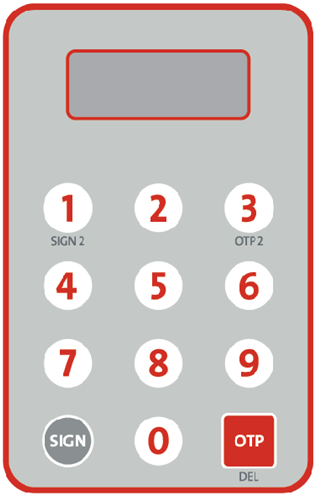
OCBC Bank Personal Security Device -
What is a Security Code?
A Security Code is the random 6-digit one-time password generated by the Security Device. It is used to verify a user's online identity and is only valid within a short time interval.
-
What is a Serial Number?
A Serial Number is the unique number printed on the back of the Security Device. The number consists of 10 digits and is in form of XX-XXXXXXX-X (e.g. 01-2345678-9).
The Serial Number is required to activate Security Device in order to link a unique Security Device to your Personal Digital Banking account. Thus, it is the only Security Device to access your Personal Digital Banking services.
-
Why do I need the Security Device?
To enhance online security, you are advised to apply for a Security Device as it is a reliable tool to verify your identity and authenticate designated Digital Banking transactions. With a Security Device, you can enjoy full access to our Digital Banking services.
-
When do I need the Security Device?
Below are the designated Digital Banking transactions required the Security Device:
- Non-registered Third Party Account Fund Transfer
- Non-registered Other Bank Account Transfer
- Non-registered CHATS
- Non-registered TT
- Non-registered HK-Macau Instant Remittance
- Register Transfer Account
- ePayment (EPSCO bill payment to non-registered bills)
- EBPP bill payment and donation Financial
- Overseas ATM cash withdrawal setting
- View and Set Transaction Limits
-
How can I apply for a Security Device?
You can apply for a Security Device through Personal Digital Banking. Please follow the below steps to request for a Security Device:
- Login to Personal Digital Banking
- Go to "Customer Services" -> "Request Security Device"
- For first-time application, choose "New Request" and click "Submit"; For applying replacement, choose "Replacement" and reason, then click "Submit".
- Confirm your application.
- You will see the message "Your Instruction was executed" and it means you have successfully requested for a Security Device.
The Security Device will be sent to your registered address subsequently. *For joint account customers, please visit any one of our branches to apply for the Security Device.
-
Do I need to pay for the Security Device?
The Security Device is free of charge for all first-time applications. However, replacement due to lost or damage will be subject to a $100 fee.
-
What should I do after I have received the Security Device?
You should activate the device as soon as possible.
-
How to activate a Security Device?
Please follow the below steps to activate your Security Device:
- Login to Personal Digital Banking
- Go to "Customer Services" -> "Activate Security Device"
- Input Serial Number and Security Code, then Click "Submit".
- A Security Key No. will be sent to your registered mobile phone number. Enter the Security Key No. and click "Confirm".
- You will see the message "Your Instruction was executed" and it means your Security Device is activated. You can use the device to perform transactions immediately.
Note: After successful activation, you can change the daily transaction limit through "Daily Limit Maintenance" on Internet Banking. (For Joint-account customers, please visit any of our branches to change the daily transaction limit).
-
What transaction specific information do I need to enter into my Security Device when I am performing designated Digital Banking transactions?
Please follow the on-screen instructions on the Digital Banking pages to input the correct information into your Security Device and generate the required Security Code.
Examples of such instructions are shown below:Identity Number Instructions Example Input HKID number Enter all digits, except all non-numeric characters and the number in bracket. A123456(7) 123456 Passport number / Chinese ID number Skip all non-numeric characters. Enter the first 6 digits. A12345678 123456 Beneficiary account number / Bill account number / Debtor reference Instructions Example Input With 8 or more digits Enter the last 8 digits only. 123-4- 567890
0123456734567890
01234567With 4-7 digits Enter all digits. 123456 123456 With 0-3 digits Verification is not applicable at Personal Digital Banking. Please perform your transaction at any of our branches. 123
AB12CD3EN/A Comprising numeric and non-numeric characters Skip all non-numeric characters. Enter the digits into the Security Device. 00123A45B678E9
A1223323456789
12233 -
If I input wrong information to the Security Device, how can I change it?
You can press
 button to delete your last entry. Press and hold button to clear all your inputs.
 -
Why the Security Code I entered when performing designated Digital Banking transactions is not accepted?
Your entered Security Code may not be accepted due to one of the following reasons:
- You may have entered an invalid Security Code (including the entered Security Code not equal to the one displayed on your Security Device or entered incorrect transaction specific information into your Security Device).
- Each Security Code is only valid for a short time interval. The time permitted for entry of the Security Code has expired.
Please follow the on-screen instructions and repeat the process to generate a valid Security Code. If the Security Code is still not accepted, please contact our Customer Service Hotline at 3199 9188.
-
What should I do if I have incorrectly entered the Security Code for several times?
If you have incorrectly entered the Security Code for several times consecutively, your Security Device will be suspended and you are not able to perform any designated Digital Banking transactions. Please contact our Customer Service Hotline at 3199 9188 for reactivation.
-
What should I do if my Security Device is lost / stolen?
Please contact our Customer Service Hotline at 3199 9188 immediately to suspend your Security Device and request for replacement via Internet Banking (Go to "Customer Services" -> "Request Security Device").
-
What should I do if my Security Device is broken / running out of battery?
The battery in your device cannot be replaced. Please request for replacement via Internet Banking (Go to "Customer Services" -> "Request Security Device").
-
Do the buttons "
 " and "
 " indicate any special functions?
There are no particular usages associated with these buttons at this moment.
-
What do I required to prepare before activating the OneToken service?
You must register your phone number and email address before activating OneToken service.
-
How to enable OneToken feature?
Logon to the mobile banking app and select ‘OneToken' under 'Profile & app settings' and follow the instruction to activate OneToken authentication. You are required to setup a 6 digits PIN for OneToken authentication.
-
Is my OneToken instantly effective after registration?
No, the OneToken will effective after 12 hours and you will receive the SMS & email notification for the OneToken effectiveness.
-
Can I still submit high-risk transactions on the mobile banking app if I have not registered for OneToken authentication?
No, the mobile banking app only accepts using OneToken as the authentication for high-risk transactions only.
-
How to update OneToken PIN?
Logon to the mobile banking app and select ‘OneToken’ under ‘Profile & app settings’ and follow the instruction to update the OneToken authentication PIN. You are required to insert the existing 6 digits OneToken PIN for the OneToken verification.
-
What can I do when I forgot my OneToken PIN?
When you submit the high-risk transaction or update OneToken PIN, there is an option “Forgot OneToken PIN?”. You can click and direct to reset your OneToken PIN and the OneToken will be re-activated.
-
Once OneToken effective, how to use for high-risk transaction in mobile banking app?
For submitting the first-time high-risk transaction, customer is required to have OneToken authentication with OneToken PIN and an extra SMS OTP for the verification.
-
How can I disable OneToken service?
You can either disable the OneToken service in 'Profile and app settings ' > ‘OneToken’.
-
What if my OneToken enabled device was stolen or lost?
Always contact us at Customer Service Hotline (852) 3199 9188 immediately if you lost or stolen your mobile device which is activated OneToken service.
-
Why do I need to perform electronic identity verification (eIDV) for OneToken activation?
To enhance security, eIDV combines identity document and biometric verification to confirm your identity and reduce the risk of unauthorized digital access and transactions. Please follow the instructions on the OCBC Hong Kong mobile application to take photos of your identity document and yourself for verification and liveness detection.
-
What types of identity documents are accepted for electronic identity verification (eIDV) for OneToken activation?
Currently, only Hong Kong Identity Cards are accepted for performing eIDV for OneToken activation.
-
How can I activate the OneToken if I do not have the required identity documents?
For your account safety, please visit any of OCBC Bank (Hong Kong) branches for identity verification in person. The branch staff will verify your identity and the device to be used for activation. Once verified, you will have 24 hours to complete the OneToken activation on the same mobile device.
-
What if I am not in Hong Kong?
If you are unable to visit a branch, please call our Customer Service Hotline at (+852) 3199-9188. Identity verification will be conducted via dual authentication, and your device will be verified. Once verified, you will have 24 hours to complete the OneToken activation on the same mobile device.
-
What if I cannot pass the electronic identity verification (eIDV) process?
You have up to 5 attempts per day to complete eIDV.
When capturing your identity card, align the card with the on-screen frame until the borders turn green. Ensure the text is clear and free from glare or shadows. You can tap “How to Capture” at the top right corner for a tutorial animation.
For the selfie, follow the instructions to perform blinking, head movements, and mouth opening.
If you fail all 5 attempts, please try again the next day or visit any OCBC Bank (Hong Kong) branch for in-person identity verification.
-
What is Push Notification?
Push notification is an alert you may receive on your device if you have enabled Push Notification service in our mobile banking app.
-
Will there be any charges for using Push Notification service?
Push Notification service is free of charge. However, data charges (including roaming charges) imposed by your mobile service provider may apply, please consult your mobile service provider for details.
-
Can I enable Push Notification on more than one mobile device?
For security reasons, you can enable Push Notification on one designated device only.
-
Why I cannot receive SMS after subscribing Service & Transaction Alert?
Starting from 12 Dec 2025, if you have subscribed to Service & Transaction Alert, you will no longer receive SMS notifications for certain transactions. Instead, you will receive Push Notifications and Emails for these transactions:
Internet Banking Internet and Mobile Banking Mobile Banking Update eBanking account list
Transfer to non-registered Telegraphic Transfer payee
Transfer to registered/non-registered CHATS payee
Transfer to registered/non-registered HK-Macau Instant Remittance payee
Security Token Activation
Forward Day Fund Transfer and ePayment (submission)Transfer to registered/non-registered OCBC account
Transfer to registered/non- other bank account
Transfer to FPS proxy (small value transfer)
Transfer failed (exceed daily transaction limit)
ePayment
Add ePayment template
Transfer to Registered Telegraphic Transfer payeeEnable/Disable Biometric Login For other specific transactions such as:
Internet Banking Internet and Mobile Banking Set overseas ATM cash withdrawal limit Increase daily transaction limit
Register new transfer accountyou will still receive SMS, Push Notifications, and Emails.
If you wish to receive SMS instead of Push Notification, please unsubscribe Service & Transaction Alert.
-
How long will my notifications be kept in the Inbox?
Notifications stored in Inbox will be kept for 90 days since the receival date.
-
Why do I fail to receive Push Notifications sometimes?
It may due to device settings or network problem.
You are suggested to check the below:
- Push Notification service has been enabled in both App and device settings.
- Stable Wifi / Mobile data is connected.
If you’re on an Android device, Google services may be limited in some countries and territories so your device may not be able to receive push notifications in those areas.
-
What is eStatement & eAdvice Service?
To encourage green living and paper saving, OCBC Bank introduces eStatement & eAdvice Service, enabling customers to view, print and download account statements and advices via Internet Banking. Enjoy this secure and convenient service and protect the environment.
-
What account types are eligible for eStatement & eAdvice Service?
Our eStatement & eAdvice Service covers a wide of account types, including but not limited to:
Category Account Types Banking - Current Account Statement
- Statement Account Statement
- Multi-currency Statement Account Statement
- Overnight Plus Account Statement
- Integrated Account Statement
- Premier Banking Statement
- Remittance Services Advice
Investment - Investment Account Statement
- Securities Account Statement
- Daily Activities of Investment Account
- Contract Note
- Consolidated Share Trading Advice and Receipt
- Securities Receipt And Credit/Debit Advice
- Securities Receipt And Credit/Debit Advice (IPO)
- Confirmation of Structured Deposit
- Daily Activities of Structured Deposit Account
Card - Credit Card Account Statement
- Cash Card Account Statement
- e-Money Loan Card Account Statement
- Revolving Credit Account Statement
-
Is there any charge for using eStatement & eAdvice Service?
Our eStatement & eAdvice Service is free of charge.
-
Do I need to register for eStatement & eAdvice Service?
This service is only applicable for customers of Personal eBanking and the relevant account(s) should be added to the Personal eBanking service.
-
How can I view my eStatement & eAdvice?
Simply logon to Internet Banking to view, print and download up to the past 7 years' eStatement and the recent 3 months' eAdvice anytime anywhere.
-
How long can I view my past eStatement & eAdvice?
You can view, print and download up to the past 7 years' eStatement and the recent 3 months' eAdvice via our Internet Banking.
-
How can I discontinue / resume mailing of paper statements & advices?
Personal customers can register to "Discontinue Paper Statement & Advice" via Internet Banking or Mobile Banking. Besides, customers can submit a Discontinuation / Resumption of Statements and Advices Mailing Service Form to any of our branches to discontinue/resume paper statement & advice.
Corporate customers can submit a Discontinuation / Resumption of Statements and Advices Mailing Service Form to any of our branches to discontinue/resume paper statement & advice.
Instruction submitted will become effective within 3 business days.
Discontinuation of mailing service is on account basis. Once the instruction is effective, all statements and advices associated with the account number will no longer be mailed. Besides, please register email address via Internet Banking (Security Device is required) to receive reminder email, notifying you that the latest statement is ready on Internet Banking and Mobile Banking.
-
Will I receive email notification reminding me the latest statement is ready on Internet Banking and Mobile Banking?
Free email notification is only applicable to customers who have registered to "Discontinue Paper Statement & Advice".
-
Is using eStatement & eAdvice safe?
eStatement & eAdvice are encrypted to protect customers' privacy.
-
Do I need to install any software in order to view eStatement & eAdvice?
Customers are required to install Acrobat Reader and Chinese Traditional Font Pack on personal computers to view, print and download the eStatement & eAdvice in PDF format.
-
What is a dormant account?
Dormant account refers to savings account, current account and other types of deposit account that has no activity other than transactions initiated by the bank (such as interest and charges) after 1 year. Once the account has turned dormant, debit and/or credit transactions restriction will be applied to the account until it gets reactivated.
-
How do I avoid having a dormant account?
To avoid account turning dormant, you may perform transactions (e.g. outward fund transfer, bill payments, etc.) with your account(s) before it reaches 1 year.
-
How do I re-activate my dormant account(s)?
Depending on the account(s) status, you may choose to re-activate your dormant account(s) by using the “dormant account activation” service on our mobile banking app. The service currently supports customer that is:
- Personal Banking Customer (Individual);
- With valid email address and mobile number registered on our e-Banking service;
- With at least one active savings account, current account or other types of deposit account remained in the eBanking account list;
You may locate the “Dormant Account Activation” service under the “Settings & Useful Info” section once you have logged on to the mobile banking app. During the activation process, you will be asked to select the desired account(s) for activation, and a SMS One-time-password (OTP) will be sent to you for identity authentication. Once the authentication is completed, a dormant account activation instruction will be submitted for further process.
To activate account successfully, please carefully read through the instruction and perform one debit or credit transaction before 20:00 on the same business day. You are also be reminded to check your email mailbox timely to stay informed about the activation status.
If you have encountered issues activating the account with our mobile banking app, you may visit any of our branches to perform account activation.
-
What is the service hour of mobile banking dormant account activation service?
The service hour of mobile banking dormant account activation service is on regular business days (Mon – Sat), 08:00 to 19:00.
-
How long does it take to activate my dormant account(s)?
The service hours of dormant account activation service are from Monday to Saturday on regular business days from 08:00 to 19:00. If customer submits dormant account activation instruction during the service hours, please perform a debit transaction in the corresponding dormant account before 20:00 on the same business day in order to allow the system to re-activate the dormant account on next working day.
-
What do I do if all my accounts are dormant?
For situations where all your accounts are dormant, in order to activate the accounts, you will need to visit branch in person.
-
What is e-Cheque?
e-Cheque is an electronic counterpart of paper cheque where the cheque writing and deposit processes are totally online. It is in PDF format and conforms to the standard accepted by Hong Kong Interbank Clearing Limited (HKICL). It has similar layout of a paper cheque and it is not negotiable nor transferable.
-
What currencies are supported for e-Cheque?
HKD, USD and RMB.
-
Is there any charge for using e-Cheque Services?
e-Cheque Deposit Services is free of charge. However, service fees might be levied in other e-Cheque Services. The same fees are applicable to e-Cheque and Paper Cheque. For details, please refer to the current account section of OCBC Bank Service Fees.
-
Can I still be able to use paper cheque?
Yes.
-
What is the validity period of an e-Cheque?
The e-Cheque will be valid for 6 months from the Cheque Date.
-
How to deposit e-Cheque to OCBC Bank?
You can deposit e-Cheque to OCBC Bank accounts (including bank accounts and credit cards) through the e-Cheque Drop Box service provided by Hong Kong Interbank Clearing Limited (http://www.echeque.hkicl.com.hk).
-
Do I need to install any software in order to view e-Cheque PDF file?
Customers are required to install Acrobat Reader and Traditional Chinese Font Pack on personal computers to view PDF file of e-Cheque.
-
What is “Money Safe”?
“Money Safe” is an anti-fraud security feature introduced by the Hong Kong Monetary Authority (HKMA). It is available for all types of Savings, Current, and Time Deposit account(s), which are denominated in Hong Kong Dollar, Renminbi, US Dollar, Euro, Australian Dollar, New Zealand Dollar, Canadian Dollar, Pound Sterling, Japanese Yen, Swiss Franc, Norwegian Kroner, Danish Kroner, Swedish Kroner, Singapore Dollar, Thailand Baht, or any other currencies as specified by us from time to time.
Money Safe allows you to lock some funds in your account to protect them from scams. Once locked, these funds will not be accessible online or offline, including withdrawal, fund transfer, autopay, direct debit authorization, standing instruction, loan or card repayment or payment of bank fees or charges, etc. You will need to unlock the funds in person at a branch before you are able to withdraw, transfer or pay using these funds.
Use of Money Safe is completely voluntary. You may decide whether to use Money Safe based on your own needs and circumstances.
-
Who is Money Safe for?
Money Safe is suitable for both individual and joint account holder:
- who wants an extra layer of security to prevent loss of funds in bank accounts due to fraud and scam; and
- who is willing to lock up funds for Money Safe protection and accepts that such funds will not be available for Transactions (including Transactions by the account holder) unless duly released from Money Safe protection.
-
Does my account status affect my application for Money Safe?
Only accounts with an active status are eligible to apply for Money Safe.
-
Is it mandatory to use Money Safe and lock the funds in my account(s)?
No. However, by locking funds that are in excess of what you need for regular or budgeted expenses (e.g. your everyday expenses and banking activities), you are adding an extra layer of protection from scams.
-
Do I have to open a new account to use Money Safe feature?
No. You can lock the funds in your existing Savings, Current, and Time Deposit account(s) seamlessly via OCBC Hong Kong mobile application, Personal Internet Banking or any of our branches in person.
-
What account type(s) is applicable for Money Safe?
It is available for all types of Savings, Current, and Time Deposit account(s), which are denominated in Hong Kong Dollar, Renminbi, US Dollar, Euro, Australian Dollar, New Zealand Dollar, Canadian Dollar, Pound Sterling, Japanese Yen, Swiss Franc, Norwegian Kroner, Danish Kroner, Swedish Kroner, Singapore Dollar, Thailand Baht, or any other currencies as specified by us from time to time.
-
Does Money Safe affect any existing account benefit?
Even if you lock the funds in your in your Current/Savings account(s), they will still stay in your account(s) and count towards the account balance. This means you will continue to enjoy the account benefits, such as the earning of interest.
Please note that the locked amount will be set aside in your existing account(s). Only that amount will be locked in Money Safe protection. This means that any interest accruing on the locked funds will not be locked under Money Safe protection.
If you lock funds in or from a Time Deposit for Money Safe protection, the funds together with the interests (if any) will continue to be locked upon the maturity or renewal of that Time Deposit. However, you will not be able to early uplift that Time Deposit before it is unlocked.
-
What happens to my time deposit if I haven’t cancelled “Money Safe” on the maturity date?
Your time deposit together with the interests (if any) will continue to be locked. If you want to release the locked funds in or from a time deposit from Money Safe protection, you should give us express instructions in writing at least 3 Business Days before the maturity date of that time deposit.
-
Can I partially lock fund for Time Deposit?
No, partial locking is not available for Time Deposit accounts. You may only apply to lock the entire time deposit amount.
-
How can I apply Money Safe?
You may apply Money Safe through Personal Internet Banking or OCBC Hong Kong mobile application on your own or visit any of our branches for application.
-
What are the service hours for Money Safe?
Money Safe supports fund locking 24/7 available for current/ savings account(s) via OCBC Hong Kong mobile app or Internet Banking. Time deposit is available from Monday to Saturday, 8:00 AM – 8:00 PM (excluding Sundays and public holidays).
For branches, please refer to the branch service hours.
The service hours are reviewed from time to time and may be enhanced to better serve your needs.
-
How long will it take for my Money Safe request to be processed?
Your request will be processed and completed in 3 Business Days.
-
Through what channel to notify me after locking fund?
We will send you a push notification/SMS and email informing you that your funds have been locked if you submit the request on Personal Internet Banking or OCBC Hong Kong mobile application.
For the request via branch, our staff will return you the acknowledgement slip.
-
Is there any minimum amount of Money Safe?
Please find the minimum amounts of different currencies for applying Money Safe as below.
Currency Minimum amount Hong Kong Dollar 10,000 Renminbi 10,000 US Dollar 1,000 Euro 1,000 Australian Dollar 1,000 New Zealand Dollar 1,000 Canadian Dollar 1,000 Pound Sterling 1,000 Japanese Yen 10,000 Swiss Franc 1,000 Norwegian Kroner 1,000 Danish Kroner 1,000 Swedish Kroner 1,000 Singapore Dollar 1,000 Thailand Baht 1,000 -
What are the steps of applying Money Safe?
OCBC Hong Kong mobile application:
(Current/ Savings account)- Log in to OCBC Hong Kong app and tap on your preferred account.
- Tap on ‘Money Safe’ and select ‘Lock your funds’.
- If you have more than one Current and/or Savings account, select the account you wish to lock funds for. Enter the amount you wish to lock and tap ‘Next’.
- Review the locked amount, confirm the Terms and Conditions and tap ‘Lock funds’.
- Tap ‘Confirm’ to complete the fund locking process.
(Time Deposit)
- Log in to OCBC Hong Kong app and tap on your preferred account.
- Tap on ‘Money Safe’ and select ‘Lock Time Deposit.
- If you have more than one Time Deposit account, select the account then select the deposit you wish to lock and tap ‘Next’.
- Review the selected time deposit to lock, read and accept the Terms and Conditions and tap ‘Lock the Time Deposit’.
- Tap ‘Confirm’ to complete the lock fund.
Personal Internet Banking:
(Current/ Savings account)- Log in to internet banking and tap on ‘Customer Service’ menu on the top right corner.
- Tap on ‘Money Safe’ and select ‘Lock your funds’ then read and accept the Terms and Conditions.
- If you have more than one Current and/or Savings account, select the account you wish to lock funds for. Enter the amount you wish to lock and tap ‘Next’.
- Review the locked amount and tap ‘Lock funds’.
- Tap ‘Confirm’ to complete the fund locking process.
(Time Deposit)
- Log in to internet banking and tap on ‘Customer Service’ menu on the top right corner.
- Tap on ‘Money Safe’ and select ‘Lock Time Deposit’ then read and accept the Terms and Conditions.
- If you have more than one Time Deposit account, select the account then select the deposit you wish to lock and tap ‘Next’.
- Review the selected Time Deposit to lock and tap ‘Lock the Time Deposit’.
- Tap ‘Confirm’ to complete the fund locking process.
Branch:
Please fill in and sign the Money Safe Application Form with assistance from our branch staff.
-
How can I release the locked funds by Money Safe?
For your account safety, you can only release the locked funds via any of OCBC Bank (Hong Kong) branches in person, your request will be processed within 3 Business Days after face-to-face verification. This is to prevent unauthorized access to your funds even in the unlikely event that a scammer gains unauthorized digital access to your account.
If you fail to complete the verification process, we reserve the absolute discretion to reject the relevant application. If you wish to cancel the service for a joint all-to-sign account, all account holders must visit a branch in person for identity verification.
-
Can I release the locked fund partially?
You may visit an OCBC Bank (Hong Kong) branch in person to submit a request to release part or all of the previously locked amount under the Money Safe service. After completing face-to-face identity verification, your request will be processed within 3 business days.
-
How do I increase the amount locked in my account(s)? Can I submit multiple requests to lock funds in the same account(s)?
You can increase the amount locked in your account(s) anytime. You do not need to release your locked funds first.
For example, if you decide to lock HK$10,000 in your account today and increase that locked amount to HK$20,000 in total tomorrow, all you have to do is to submit another request with the top-up amount of HK$10,000. Your locked amount will be updated to HK$20,000.
-
Can I use my locked funds to make scheduled or recurring payments?
No. When your funds are locked, you cannot use them for:
- New or existing payment arrangements (e.g. standing instructions or future-dated transfers)
- Transfers to another OCBC account
- Transfers to another bank’s account (e.g. local and overseas transfers)
- Bill or credit card or loan payments
- Time deposit placements or investments
- Insurance purchases or payments
- Loan or tax repayments
- ATM withdrawals or transfers
You will not be able to access your locked funds until they are released. Do keep sufficient available balance to avoid late fees or charges.
-
Does Money Safe affect the maturity instruction of my Time Deposits?
No, once the Time Deposit is locked under Money Safe protection, the maturity instruction of the Time Deposit cannot be changed until it is unlocked.
-
How can I check the locked funds under Money Safe?
You can view your locked funds by visiting any of our branches in person, calling our customer service hotline or via the OCBC Hong Kong mobile application or Personal Internet Banking. The locked amount will be displayed under your account balance, or you can view all locked funds across your accounts by going to “Money Safe” > “Your Money Safe”.
-
How will the locked amount be shown under my account balance via OCBC Hong Kong mobile application or Personal Internet Banking?
Current / Savings Account:
The locked amount is deducted from your available balance.Time Deposit Account:
The amount of the selected deposit is marked as locked.The above indicators mean that the funds are locked and cannot be used for any transactions until they are released.
-
Any impact to my Current Account Overdraft protection if I activate Money Safe?
No, activating Money Safe does not impact the overdraft service linked to your Current Account. However, we recommend maintaining sufficient available funds before making any transactions to avoid administrative charges due to insufficient balance.
-
I am an account mandate. Can I activate / deactivate Money Safe on behalf of the account holder?
Yes, you can do so provided that your identity can be verified by us in accordance with our prescribed procedures.
-
What will happen after I disable “Online registration for third-party payee” and/or “Online increase of transaction limit”?
For your account safety, you may choose to disable the “Online registration for third-party payee” and/or “Online increase of transaction limit”. Disabling these features reduces the risk of fraudsters accessing your account funds if they obtain your online banking login credentials.
-
What impact will disabling “Online registration for third-party payee” and/or “Online increase of transaction limit” have on my online banking account?
Once disabled, you will no longer be able to register new third-party payees or increase transfer/payment limits via Personal Online Banking or the OCBC Hong Kong Mobile App. These actions will only be possible by visiting a branch.
-
How can I apply for disabling “Online registration for third-party payee” and/or “Online increase of transfer limit”?
You may submit the request via Personal Internet Banking or OCBC Hong Kong mobile application by yourself, or any of OCBC Hong Kong branches in person.
-
Is it mandatory to disable the “Online registration for third-party payee” and/or “Online increase of transaction limit”?
No, it is voluntary. You may decide whether to disable the features based on your own needs and circumstances.
-
Does disabling “Online registration for third-party payee” and/or “Online increase of transaction limit” affect my existing registered third-party payees and/or transaction limits?
No, the existing registered third-party payees and/or transaction limits will not be affected.
-
How can I reactivate the “Online registration for third-party payee” and/or “Online increase of transaction limit”?
For your account safety, you can only reactivate the features via any of OCBC Hong Kong branches in person, the funds will be released your request will be processed within 3 Business Days after face-to-face verification.
-
How long does it take for the request to become effective after submission for “Online registration for third-party payee” and/or “Online increase of transaction limit”?
If you submit via Personal Internet Banking or the OCBC Hong Kong mobile application, the request will take effect immediately.
If you submit via branches, it will be processed within 3 business days.
-
Can I change my User ID and PIN?
You may change your User ID or PIN online by selecting "Change of User ID" or "Change of PIN" under the "Customer Services" section.
-
For the first time login, do I need to change the PIN?
For the first time login, you are required to change your User ID and PIN.
-
What can I do if I forget my User ID and/or PIN?
Customers can reset their mobile and internet banking User ID and PIN by clicking "Trouble logging in" on mobile banking login screen. A step by step guide can be downloaded here.
If customers can login mobile banking app by biometric authentication, customers can reset their User ID and PIN by "More" > "Profile & app settings" > "Manage login" -
What will be happened if I enter an incorrect PIN?
Your service will be suspended if you enter incorrect PIN for 5 times consecutively. You are required to submit the OCBC Bank eBanking Services - Alteration Request Form to reissue your PIN.
-
How can I re-activate the suspended account service?
Your account service will be suspended if you have not logged on Internet / Mobile Banking for 12 months, please contact our Customer Service Hotline at 3199 9188 to re-activate. If your account is suspended due to other reasons, you should re-issue your User ID and PIN by submitting the OCBC Bank eBanking Services - Alteration Request Form to any of our branches.
You may collect eBanking Identification Number (User ID of Internet Banking and/or Phone Banking ID of Phone Banking) and assign the corresponding PIN(s) at branch.
-
What is "Overseas ATM Cash Withdrawal Service"?
To comply with the latest regulatory requirement of The Hong Kong Monetary Authority to strengthen the security controls for ATM services, with effect from 1 March 2013, the overseas ATM* cash withdrawal (including cash advances) service of all ATM cards and credit cards will be pre-set as "deactivated".
Customers are required to activate Overseas ATM Cash Withdrawal Service for their ATM cards and credit cards before using overseas ATM to withdraw cash (including cash advances).
* No activation is required for cash withdrawal via JETCO ATMs in Macau and China.
-
How can I activate, edit or deactivate "Overseas Cash Withdrawal Service"?
Customers can activate, edit or deactivate the Overseas ATM Cash Withdrawal Service according to their needs by selecting "Overseas ATM Cash Withdrawal Setting" under the "Other Services" section. To activate or edit the service, customers are required to set the activation period and daily withdrawal limit.
-
Can I re-register after suspending the use of Personal Digital Banking Services?
Yes, you can choose to temporarily suspend your Personal Digital Banking Services by submitting the OCBC Bank eBanking Services - Alteration Request Form to any of our branches. You may also resume your services thereafter by submitting the OCBC Bank eBanking Services - Alteration Request Form. A new set of User ID / Phone Banking ID and PIN will be reissued.
-
What are the service fees for Personal Digital Banking Services?
Personal Digital Banking Services is a free of charge service. However, please note that service fees are applicable to designated services such as remittance services and stop cheque payment etc. For details, please refer to OCBC Bank Service Fees.
-
What is “Activity Log”?
It helps you monitor the certain activities on OCBC Bank (Hong Kong) Mobile App and Personal Internet Banking in the last 60 days with date & time, location and device information. In case you find any activity not conducted by yourself or with date & time, location or device that you are not familiar with, please contact our Customer Services Hotline (852) 3199-9188 as soon as possible.
Currently, the record of below activities might not be able to show on the “Activity Log”:
- FPS Account Binding
- Bill Payment
- Stock Trading
- Foreign Currency Exchange
- Currency-linked Deposit
- Risk Profiling Questionnaire
- Dormant Account Activation
- Telegraphic Transfer with Registered Beneficiary
- View eStatement
Instead, you may refer to the transaction history of your account for record of such activities for up to last 90 days. If you wish to have more information, you may cross reference with the relevant “Logon” activity record with date & time, location and device information on “Activity Log”.